
Plan a home video studio around the work you need to finish: meetings, webinars, interviews, courses or recorded messages. The room, camera, microphone, lighting and controls should support those uses together. A room that looks impressive in a photograph can still be difficult to operate from the chair.
This guide turns that requirement into a brief you can share with a studio designer. It works for a dedicated room or a small permanent setup in a home office. Begin with the current space and existing equipment, then identify the changes needed to make everyday use repeatable.
Write down three real sessions
Describe three sessions that represent your workload. For example, a routine meeting, a webinar with slides and a recorded explanation intended for editing. These are planning examples, not claims about a particular JAZ client. Write what happens before, during and after each session.
For the meeting, specify who starts the call and whether you need to see several participants. For the webinar, describe slides, questions, a moderator and any remote guests. For the recording, define where the files go and who checks them before the equipment is switched off. These differences affect displays, microphone routing, controls and storage.
Separate essential functions from occasional requests. If a second presenter visits twice a year, a flexible temporary arrangement might be more useful than a permanent second seat. If you record interviews every week, that same seat becomes part of the core layout. Frequency is relevant, but the difficulty of setup and the consequences of failure matter too.
Survey the room during working hours
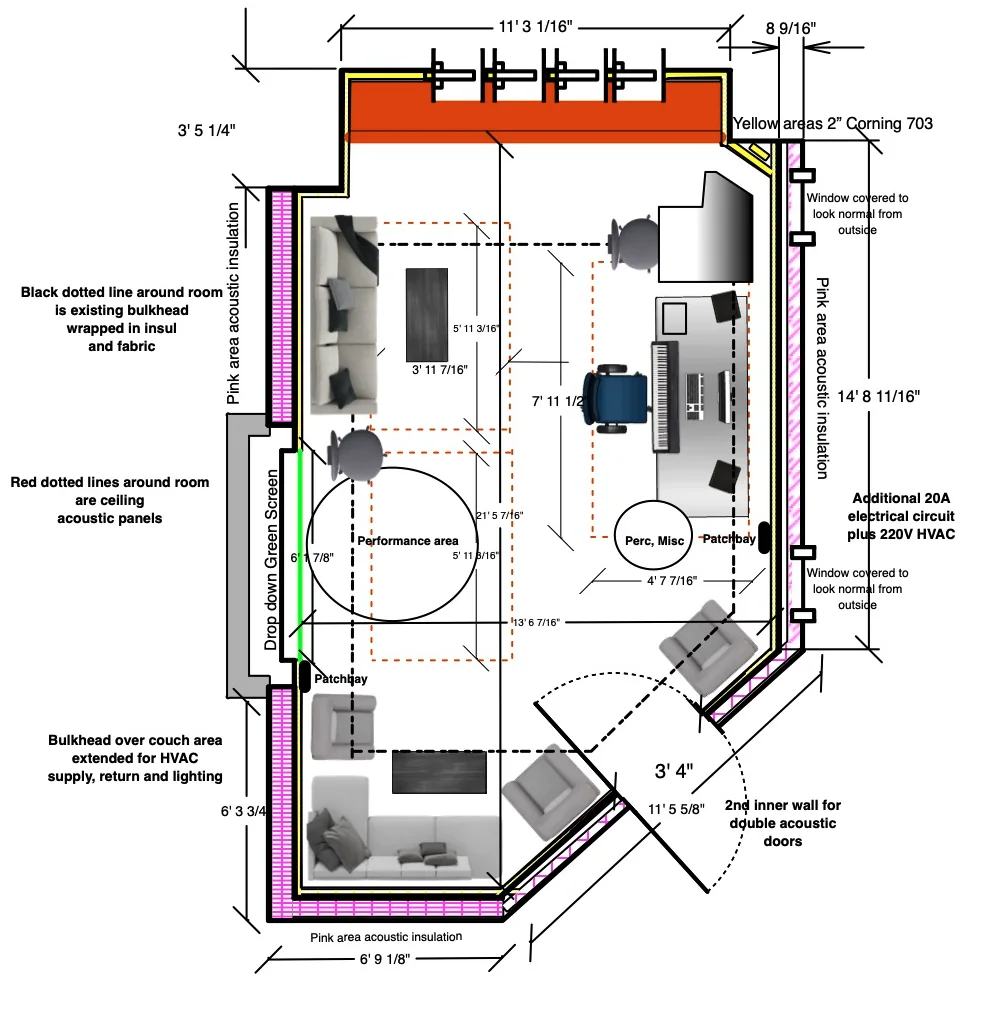
Measure the usable room, not just the wall-to-wall dimensions. Include door swings, open drawers, a chair pushed back, shelves and the space behind the camera. Note what must remain untouched. A family object or existing desk may be part of the desired setting rather than an obstacle to remove.
Take photographs from each corner and from the proposed lens position. Mark windows, outlets, network connections and vents on a simple plan. Record the ceiling height and any mounting restrictions. Do not assume a ceiling or desk can support equipment because another installation looks similar.
Listen during the times you expect to work. Nearby traffic, household appliances and ventilation may change through the day. Save brief recordings with a spoken description of the conditions. These samples are useful for initial discussion, though a phone recording cannot establish the building’s isolation performance or replace a technical assessment.
Choose the view before the furniture moves
The audience sees a frame, while you live in the whole room. Decide what belongs in that frame and what can remain outside it. Work with the actual chair and the way you sit, rather than posing upright for a single test photograph.
Try the camera near eye level and adjust its relationship to the display. Look at another participant, read notes and share slides while watching a recorded sample. If the eyeline is distracting, move the call window or display before adding more devices. A teleprompter can be considered when scripts or near-lens content are a recurring need, but it introduces its own mounting, visibility and operating questions.
Consider framing for both the main video and any later extracts. A composition that leaves room for captions or a presentation panel may differ from a full-screen meeting shot. Tell the designer which output is primary. Avoid asking one fixed shot to serve every format equally well without testing the compromises.
Make lighting repeatable
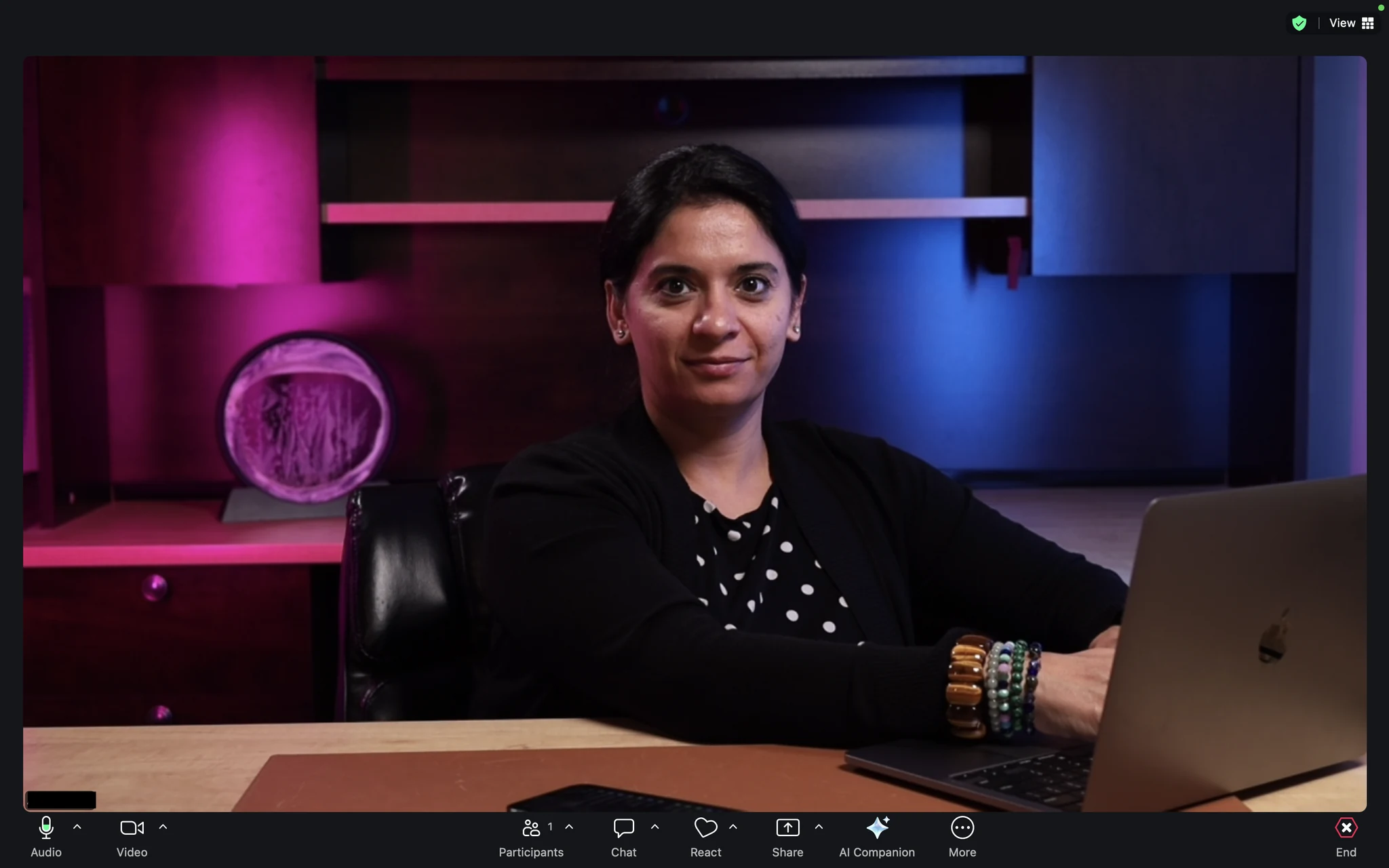
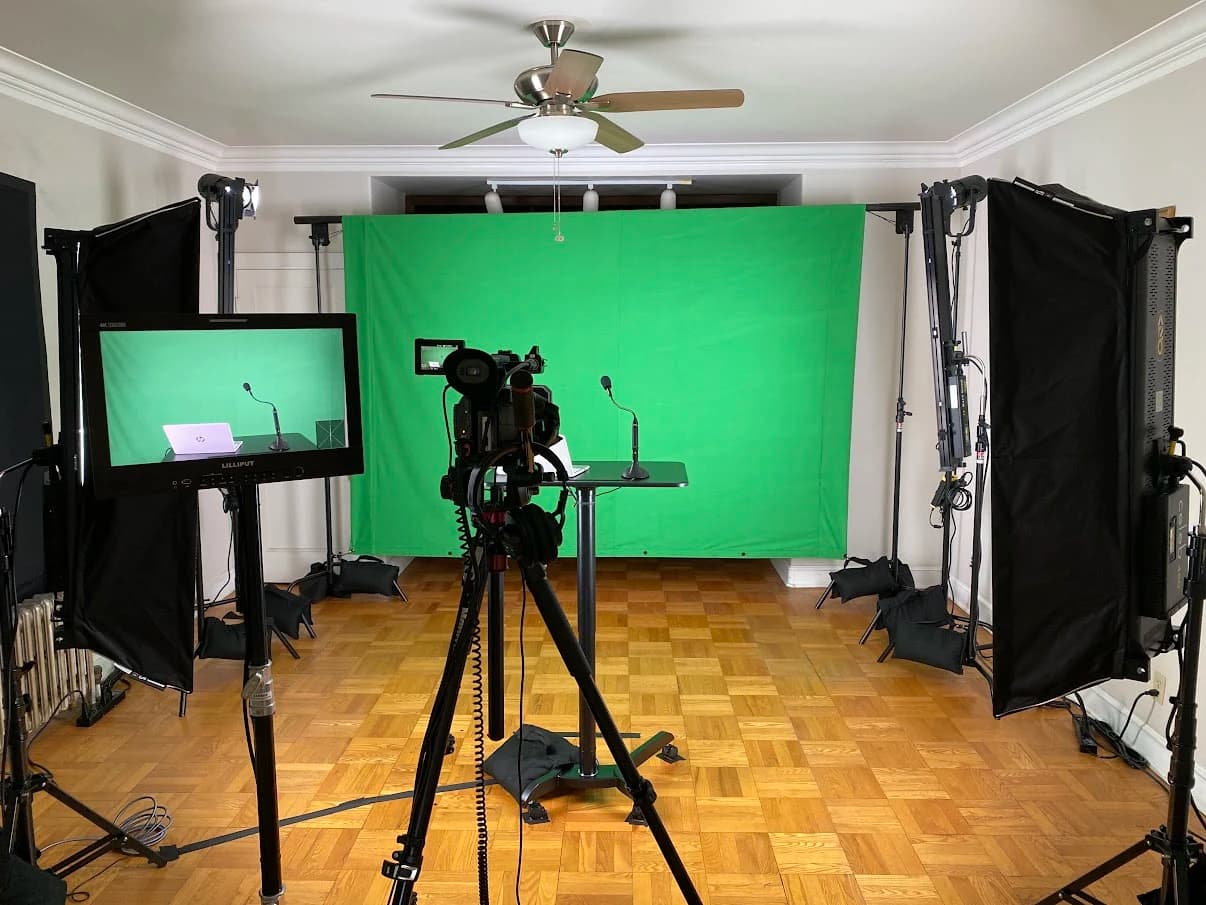
Assess the face and background separately. Useful presenter light should remain comfortable for the person speaking. Background light should help the setting read clearly without becoming the brightest distraction in the image. Check both through the camera, because the room’s appearance to the eye is not the final output.
Test with glasses, the normal display brightness and the clothes commonly worn on calls. Reflections can change as the user turns or leans back. If the setup depends on a precise chair location, make that position easy to find again. A discreet reference point can be more useful than a long page of camera settings.
Record what should happen to daylight. The brief might call for controlled blinds, a different desk orientation or a lighting arrangement that works with a particular window. Avoid promising identical results at every hour until those conditions have been checked. A fixed artificial light does not automatically cancel a changing sunlit background.
Design audio for an occupied room
Identify the speaking position, microphone position and listening method together. Headphones may be acceptable for a meeting and undesirable for a recorded message. Loudspeakers can be comfortable, but their interaction with microphones and the conferencing application needs testing with a remote participant.
Ask the designer to distinguish reflections inside the room from noise entering through the building. Soft furnishings or acoustic treatment may address reflections. They do not establish that outside traffic or another household member will be inaudible. The studio audio guide explains how to separate those investigations.
Include practical behavior in the test: typing, turning to another screen, moving a mug and adjusting the chair. Also test silence. A persistent fan can be less noticeable while someone is talking and obvious between sentences. Decide whether the acceptable solution is a quieter device, different placement, building work or a recording schedule that avoids the source.
Draw the signal path in ordinary language
A useful system description can start with words: camera to computer, microphone to computer, computer to meeting, meeting to headphones. Add every converter, interface or dock that sits between those points. This reveals compatibility questions before purchasing starts.
For recording, describe whether you need only the finished program or separate camera and audio files for editing. A webinar recording from the platform may serve one purpose, while an editor needs a different set of files. Agree on the handoff before specifying storage or a recorder.
Ask what happens when the laptop is disconnected, sleeps or updates. Does the application remember the right devices? Does another user’s laptop behave differently? A permanent installation should include a documented way to return to the intended configuration. That recovery path matters even if normal startup is simple.
| Session | Decisions to resolve | Evidence that it works |
|---|---|---|
| Daily meeting | Camera, microphone, listening method and call display | A remote participant confirms picture, sound and shared content |
| Webinar with slides | Presenter view, slide control, questions and recording | Rehearsal uses the actual host account and slide deck |
| Recorded message | Script position, recording destination and file review | A sample opens in the editor’s normal workflow |
| Remote interview | Guest return audio, guest picture and responsibilities | Host and guest complete a test from their normal locations |
Decide what stays installed
List which equipment remains in position and what is packed away. If a light or microphone must move each day, define its storage location, mounting process and repeatable position. Include the time and physical effort of that reset in your decision.
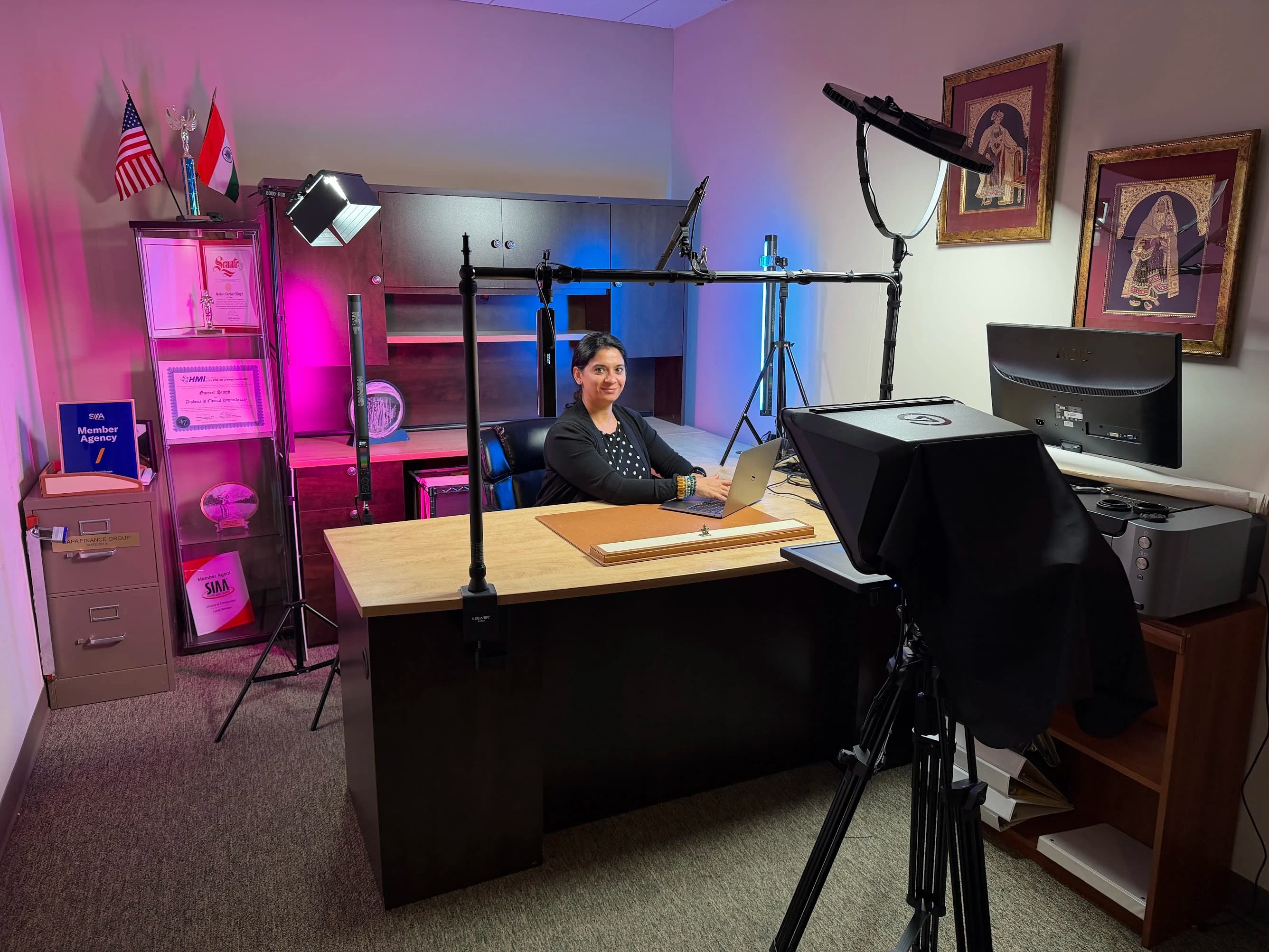
In JAZ’s Fractional Family Office project, the documented approach kept the existing desk and heirloom, using a noninvasive desk-mounted setup with camera, teleprompter and lighting. That is a specific response to restrictions on drilling and permanent changes. Another room may need a different approach after its surfaces and support points are assessed.
Cable paths deserve the same attention as the visible equipment. Show how the chair moves and where someone walks into the room. Keep connectors accessible for service and make the everyday user connection obvious. Equipment that only works when a cable is pulled tightly across the desk is not a complete layout.
Assign the everyday responsibilities
Even a one-person studio has several jobs. Someone maintains the computer, updates the meeting software, stores files and decides whether a failed session needs technical support. Write down those responsibilities instead of assuming the installer will handle every later change.
If an assistant or editor helps remotely, include them in the design conversation. They may need access to files, a way to confirm recording status or instructions for guiding the presenter through a reset. Keep account ownership with the appropriate user or organization and agree on any remote-support arrangements explicitly.
Ask for a short startup card based on the finished system. It should describe the normal state, the few actions needed to begin and the visible confirmation that the correct camera and microphone are active. A photograph of the correct connections can be more useful than a list of product names.
Test the complete session before handover
Commissioning should use the final room, final devices and actual applications. Start with the system off or disconnected as it normally would be. Follow the startup card, join a test call, record a sample and finish the session. A demonstration led by the installer does not show that the daily user can repeat it.
Review the received call on another device. Then review the saved recording independently. Check that the file includes the expected picture and sound, is stored where the editor expects it and can be opened without special troubleshooting. If the workflow includes captions or transcripts, assign their production and review as part of the content handoff. W3C’s media planning guidance is a useful reference for those accessibility decisions.
Repeat the test with the normal room conditions: ventilation on, usual screens active and the household operating normally. Record any limitations as specific conditions. “Close the west blind for afternoon recordings” is actionable. “Lighting may vary” leaves the user guessing.
A brief you can send to JAZ
Use the following checklist to assemble the first discussion. Unknowns are useful information. Mark them for review rather than inventing measurements or choosing equipment to fill a blank.
- Main uses: describe three sessions and their finished outputs.
- Users: name the presenter, anyone assisting and the person receiving files.
- Room: provide dimensions, photographs, ceiling height and restrictions.
- Existing equipment: list the computer, displays, camera, microphone and applications.
- Picture: describe the desired framing, background and script or slide needs.
- Sound: identify noticeable noise and whether headphones are acceptable.
- Operation: explain what must stay ready and what can be moved.
- Delivery: specify recordings, editing handoff, captions and storage ownership.
- Acceptance: define the call and recording tests the system must pass.
- Timing: distinguish the date you need to record from the date installation can happen.
Send this brief through the JAZ inquiry form with a photo taken from the proposed camera position. We can use it to discuss a home video studio that fits the room and the work, with remaining technical questions resolved before equipment is ordered.
Jesse Kaplan

Jesse Kaplan is the third generation of JAZ Entertainment. His work spans permanent studios, professional AV systems and live technical production.
About Jesse and JAZ