
A better camera can improve a video call when the camera is the limiting part of the setup. It cannot move a window, quiet a room, correct an awkward eyeline or make a weak connection stable. Before buying one, separate what the camera captures from what the person at the other end actually receives.
The useful question is specific: what looks or sounds wrong, under which conditions, and where does the problem first appear? A short comparison can answer that more reliably than another equipment list.
Compare the local picture with the received call
Open the camera preview on your computer, then join a test call with someone on another device. Ask them to look at your face, movement and shared presentation. Record a short sample if the platform and participants permit it. A flattering local preview is not proof that the remote picture looks the same.
If the local image is clean but the received image freezes, softens or becomes blocky, investigate the call path. That includes the application, computer load, connection and receiving device. Replacing the camera may create a larger input for the same constrained path. Test with the normal applications open, because a quiet computer running only its camera utility is a different operating condition.
If both views are poor, work upstream. Check the selected camera, clean the lens, verify focus and look at the room. Change one variable at a time and save a short comparison so you do not have to rely on memory.
Check the light before the resolution
A bright window behind your chair can create a difficult exposure choice: retain the window or reveal your face. Raising the camera resolution does not change that balance. Turn the desk, control the window or change the light on the presenter, then compare the result.
Watch what happens across the actual working day. Morning light may be usable while afternoon sunlight crosses the face or desk. A setup that works only during one demonstration is not ready for a calendar full of calls. Test the lighting with the blinds in their ordinary position and the ceiling lights set as they would be during work.
A lamp also needs somewhere practical to live. If its stand blocks a drawer or walkway, it will eventually be moved. The relevant specification is not simply brightness. It is whether useful light can reach the presenter comfortably and remain repeatable without making the office inconvenient.
Put the camera where the conversation happens
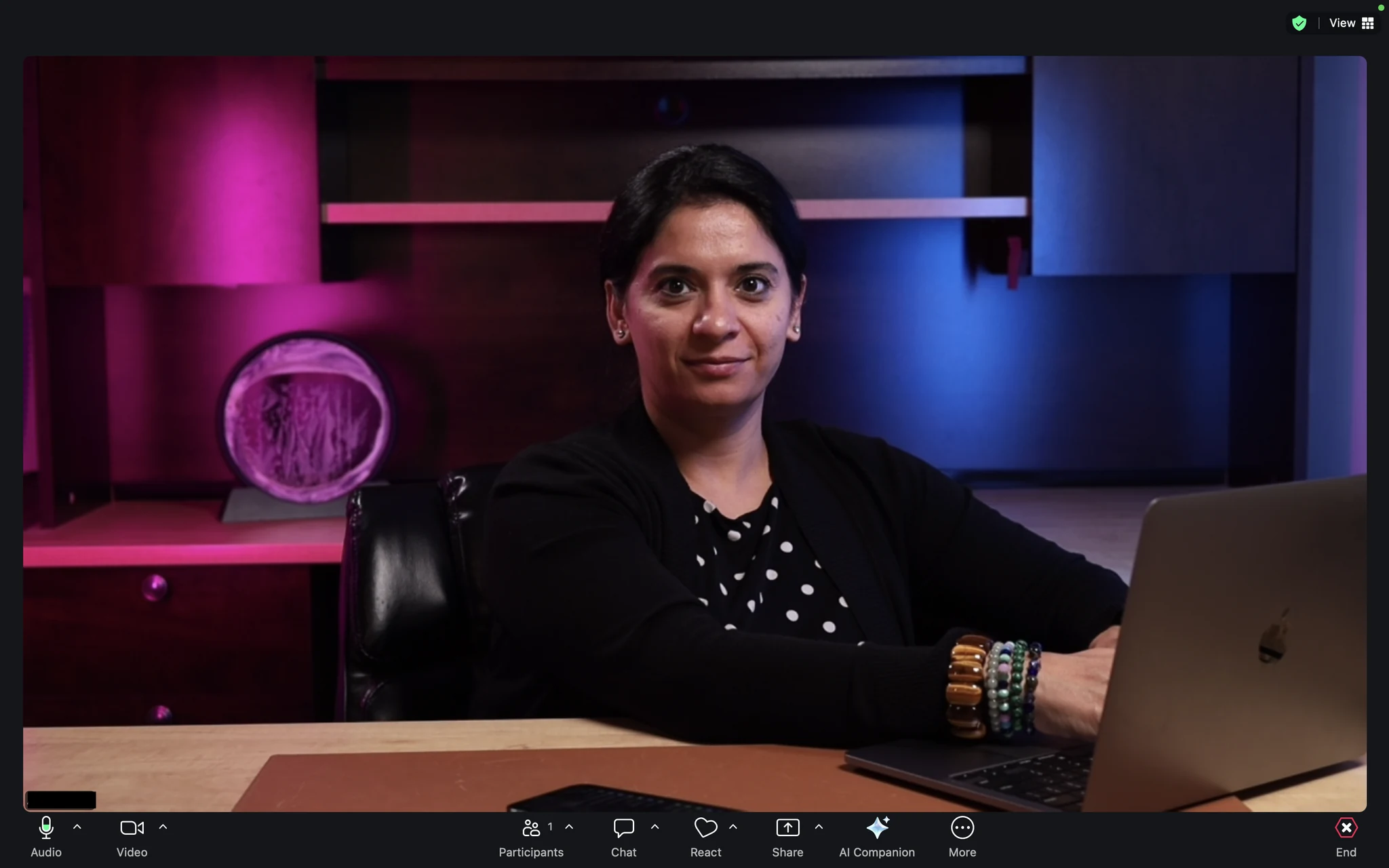
Camera position changes how the viewer reads the speaker. A camera on a low laptop can produce a strong upward angle. A camera far above a large display can make someone appear to look down throughout the conversation. Moving the camera may solve more than replacing it.
Arrange the call window near the lens and test the eyeline while speaking to a real person. A comfortable screen position for spreadsheet work may be wrong for a presentation. If the workflow involves scripts or slides, determine how the speaker will read them without continually looking away.
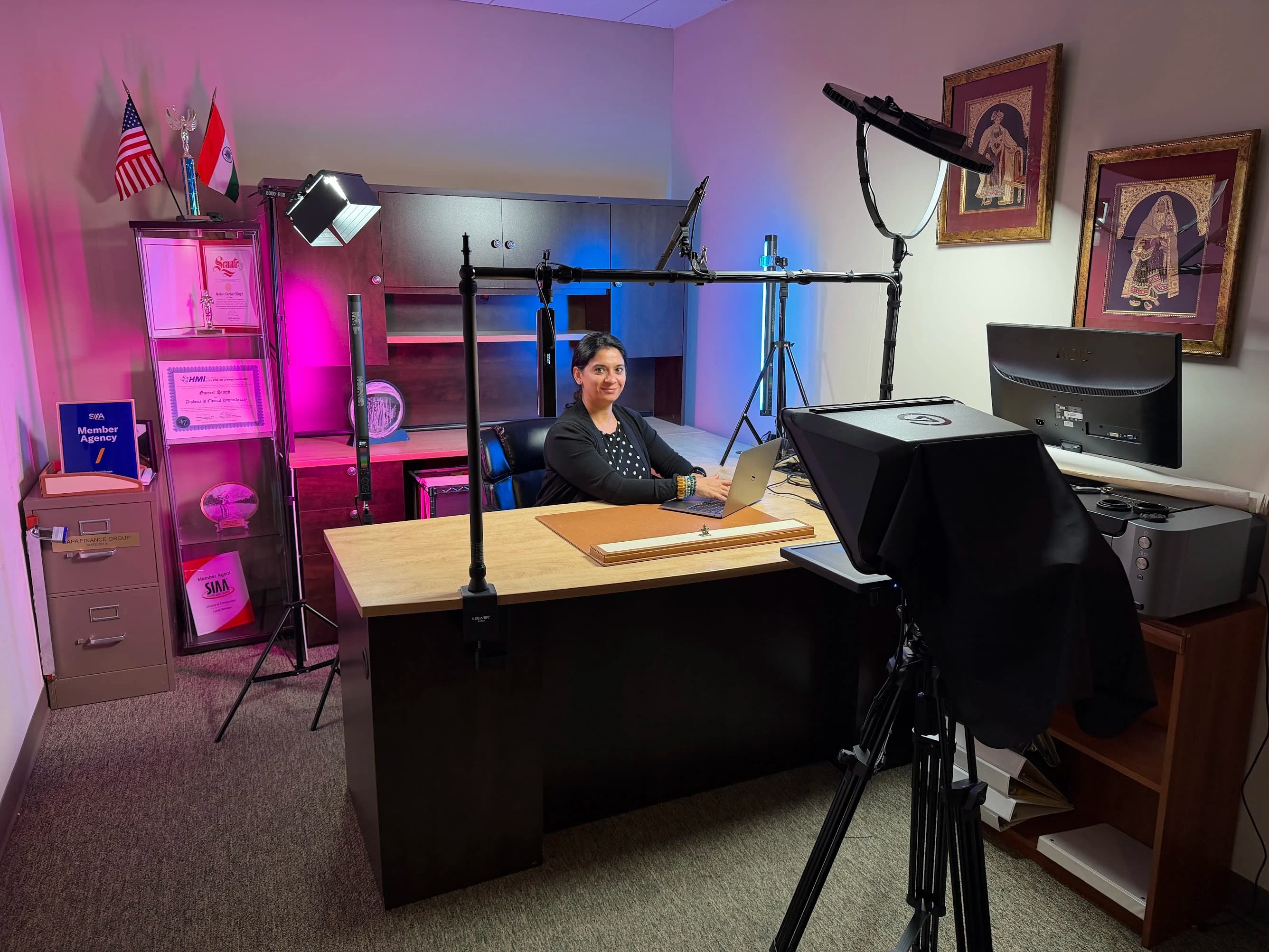
At Fractional Family Office, JAZ’s documented scope included a desk-mounted camera and teleprompter, presenter lighting and accent lighting around an existing heirloom. The case study describes a noninvasive installation. Its relevance here is the coordinated arrangement of the room, display and speaker, not a claim that every office needs a teleprompter.
Listen without watching
Play a call sample with the picture hidden. Is the voice understandable? Does typing dominate? Can you hear ventilation or a strong room reflection after each phrase? An improved picture can make these problems more noticeable without solving them.
Test a practical microphone position before making a purchase decision. The microphone must work where the person actually sits, including when they turn toward a second screen. A position that sounds good only while the user leans forward is unlikely to survive ordinary meetings. Shure’s microphone techniques reference explains why placement and the surrounding acoustics affect the recorded result.
Check the selected input inside the meeting application as well as the operating system. A connected microphone is not necessarily the microphone being used. Ask the remote participant to confirm the difference when you change inputs. That simple check can prevent a room redesign aimed at the wrong problem.
Decide what the upgrade must solve
Use a symptom-based comparison rather than a list of preferred products. Several problems can coexist, so this table identifies the next investigation, not a guaranteed diagnosis.
| What the viewer notices | Check first | When a camera change becomes relevant |
|---|---|---|
| Face is dark against a bright room | Presenter light and window control | The room is balanced but the camera still cannot produce a usable image |
| View looks awkward or distant | Lens position, seating and framing | The required framing cannot be achieved from a practical mounting point |
| Local picture is clear, call is unstable | Application, computer and network path | Testing identifies the camera or capture connection as the failure |
| Voice sounds distant | Input selection, microphone position and room sound | A camera purchase alone will not address this symptom |
| Camera repeatedly loses the subject | Focus settings and actual presenter movement | The existing camera cannot reliably maintain the required focus |
A camera upgrade can be justified by framing flexibility, dependable focus, connection compatibility or a recording requirement that the existing device cannot meet. State that requirement in plain language. “The presenter must stay in focus while showing a product at the desk” is more useful than “we need a professional camera.”
Test a normal working session
Build a small acceptance test around a real call. Join from a cold start, share a presentation, switch back to the speaker, reconnect after a brief interruption and finish without an unexplained recording left running. Ask another person to operate the setup using written instructions.
Include the ordinary annoyances: glasses, a chair that moves, notes on the desk, a laptop dock and a person joining late. These are not edge cases in an office. They are the conditions under which the equipment needs to work.
Before contacting JAZ, gather a photo from the camera position, a side view of the desk, a short received-call sample and the names of the applications you use. The home video studio service is built around this broader room-and-workflow assessment. Send the setup and the specific problem so we can discuss the part of the system that actually needs attention.
Jesse Kaplan

Jesse Kaplan is the third generation of JAZ Entertainment. His work spans permanent studios, professional AV systems and live technical production.
About Jesse and JAZ